
For venue owners
Claim your venue page on Live Music Todos Santos
If you manage a venue, claiming the page connects it to your account so you can keep the public details accurate without waiting on every small update.
Why claim your venue page?
Keep the basics correct
Update your venue name, address, map link, phone number, website, photo, and description when something changes.
Help visitors find you
A clean venue page gives guests one place to check the map, contact information, and upcoming music before they head out.
Support your event listings
Claimed venue pages make it easier to keep connected events and venue details aligned for the live music calendar.
Publish simple updates quickly
Once your claim is approved, venue profile edits publish right away. Admins still handle ownership approval and site-wide cleanup.
How to claim an existing venue page
Create or sign in to your account
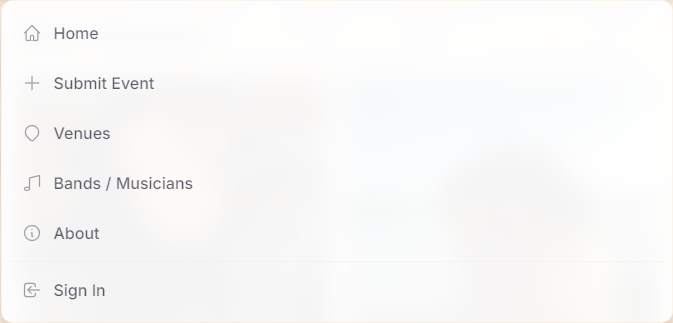
Open the Menu at the top right of the site and choose Sign In. Use the email you want connected to the venue.
Find the venue page
Go to Venues and search for the venue you manage. Open the existing page before creating a new one so the calendar does not end up with duplicate venue listings.

Do not see your venue yet? Jump down to Need a new venue page?
Tap Claim this page
On the venue page, tap Claim this page. That sends an ownership request to the site admins.
If the button is not visible, the page may already be owned or you may need to sign in first. Contact the site team if your staff should have access.
Wait for admin approval
An admin reviews venue claims so pages stay in the right hands. You may see Claim pending while the request is waiting.
If we need to confirm the request, we may look for a venue website, social profile, business email, or a short note that shows you manage the venue.
Use Edit after the claim is approved
Once approved, an Edit button appears on the venue page when you are signed in. Use it to update the venue profile whenever details change.
The venue editing guide explains each field before you make changes.
Need a new venue page?
If your venue is not listed, sign in and create a new venue page from the Venues area or go straight to Create venue page.
Add the name, address, map link, photo, website, phone, and a short description if you have them. Complete details help admins approve the page faster.
What helps a claim get approved?
Use the right account
Sign in with an email that a venue manager can keep using, not a one-time personal address if the venue has a shared admin email.
Make the venue easy to confirm
A matching website, social profile, posted event, or business email makes the admin review simpler.
Avoid duplicate pages
Claim the existing page when it is already listed. Create a new page only when the venue is truly missing.
Ask for extra managers when needed
More than one approved person can help manage a venue page when the extra account is verified.
A few quick FAQs
Does claiming a venue cost anything?
No. Claiming a venue page is free.
Can staff share one venue page?
Yes. A venue can have more than one approved owner when the extra manager should help keep the page current.
What if the venue manager changes?
Contact the site team so ownership can be updated. This keeps the page connected to the people currently managing the venue.
Can I claim more than one venue?
Yes. Use the same account to request ownership for each venue you manage.